

What technology do I need for free online foster training?
Free online foster training usually requires a computer, tablet or smartphone with internet access, a compatible web browser, and working speakers or headphones. If sessions include live video calls, you may also need a webcam and microphone; check the provider’s instructions before starting.
Partnering with an
Ofsted Outstanding Provider
For free online foster training, you need a device and setup that can run the provider’s learning platform reliably, display course materials clearly and allow you to participate in any required activities. Beyond the basic equipment, check the software, access details, privacy settings and study environment before you begin.
Before enrolling or joining a session, confirm the following with the training provider:
- which operating systems and browser versions are supported;
- whether sessions take place in a web browser or require an application to be installed;
- whether the course works on mobile devices or is designed primarily for a larger screen;
- whether you need to download documents, complete forms or view presentations in a particular file format;
- how you will receive the joining instructions, password or course login; and
- whether any software must be updated before the training starts.
Keep your device’s operating system, browser and any required training application up to date. Updates can improve security and compatibility, but installing them immediately before a live session may cause avoidable problems. If possible, check the platform and open any preparatory material in advance.
Your internet connection should be consistent enough for the type of learning involved. Pre-recorded modules may continue after a brief interruption, whereas a live discussion can be disrupted if the connection drops. If other people or devices share the same connection, closing unnecessary applications and downloads may help. Where your connection is unreliable, ask the provider whether there is an alternative way to access the material or catch up.
You will usually need an individual email address to register, receive course information and reset access details. Use an email account that you check regularly during the training period. Store your password securely rather than sharing it with another person, particularly if the course includes personal information, assessment records or attendance details.
Choose a suitable place to study. A quiet area can make it easier to follow explanations and take part in discussions, while a private setting helps protect the confidentiality of anything shared during foster care training. Avoid leaving course pages, notes or video conversations visible to people who are not involved in the training. If you are studying in a shared household, use privacy settings and check what can be seen behind you before joining a video session.
It is also sensible to test practical features before the first session. Check that you can:
- sign in and open the relevant course page;
- play a sample video or presentation;
- read documents without the text being too small;
- complete and submit any introductory activity;
- find the controls for joining, leaving or asking questions in a live session; and
- locate the provider’s instructions for reporting a technical problem.
If you have accessibility needs, ask what adjustments or platform features are available before starting. These might include captions, transcripts, adjustable text size, screen-reader compatibility, keyboard navigation or accessible copies of documents. The most suitable arrangement will depend on the course format and your needs, so raise this with the training provider rather than assuming that every feature is included.
A smartphone may be useful for checking messages or joining a short activity, but a larger screen can be more practical for reading detailed guidance, completing forms and viewing several participants during a discussion. If you use a tablet or phone, check how the course displays on that device and whether the required functions are available in its browser or application.
Have a charging method available and save important joining information somewhere you can access if the course page temporarily closes. You may also want a notebook or digital document for your own learning notes. Do not record a live session, take screenshots of participants or share course materials unless the provider has given permission.
If something does not work, record the exact message shown, the page or activity affected and the device you are using. This gives the training provider useful information when helping you. Technical difficulties should not be confused with a lack of understanding of fostering, so ask for clarification about the learning content separately from reporting an equipment or access problem.
The provider’s own instructions take priority because technology requirements vary between online courses. Checking them before you start will help you know whether your existing equipment is suitable and whether you need to arrange any software, accessibility support or alternative access in advance.
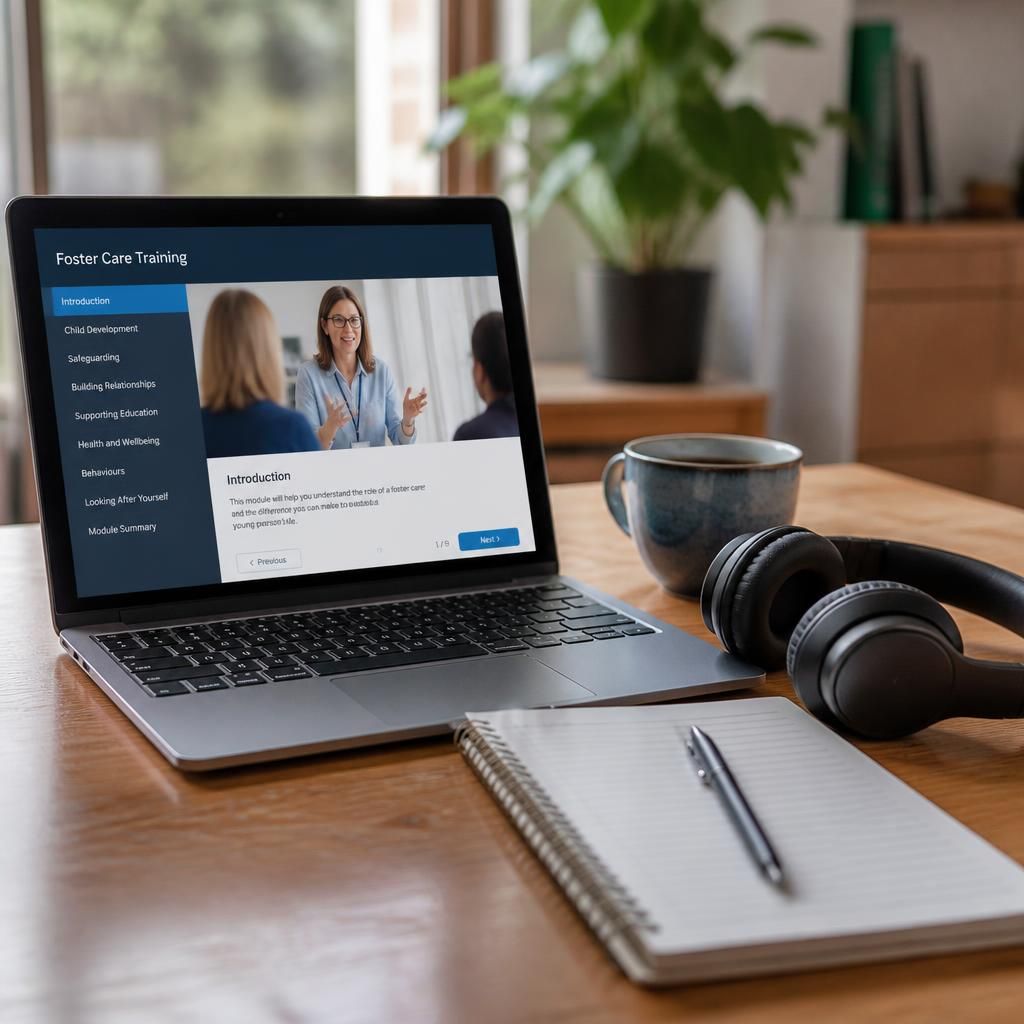
Free online foster training may still use your household internet or mobile data, particularly when the course includes video or live discussion. Before you start, check how you will connect and whether your data allowance is suitable for the course format.
If you rely on mobile data, ask the training provider whether materials can be downloaded in advance or accessed in a lower-bandwidth format. Avoid using an unsecured public computer for training that requires personal login details, and make sure any device you borrow can be used privately and securely.
Get ready for free online foster training
If you would like to understand how free online foster training fits into your fostering journey, contact Become A Foster Family to discuss the course and your next steps.